Search, edit, or delete an existing social post in Content Library → Social Posts
Use the Social Posts area to find content you have already created, make supported edits before publication, or select a post for deletion.

Open Content Library → Social Posts to manage a post you already created. Use search and any available filters to find it, then open the post to review its content and publication status. You can edit supported wording, messaging, formatting, and other supported elements before publication. To remove a post, select it, use the available management control, and complete the confirmation step. Review the selected post carefully before confirming deletion.
- Content Library → Social Posts is the starting point for finding and managing social content created through OceSha AI.
- Search and available filters help narrow the posts in your library; review the result before making changes.
- Before publication, you can edit supported social-post content, including wording, message, and formatting.
- Deletion uses a post-selection control and a confirmation step, so check which post is selected before confirming.
- Publication status helps distinguish a draft you are still reviewing from content that has already been published.
Where do I find a social post I already created?
Go to Content Library → Social Posts. The Content Library is OceSha AI’s central workspace for content created or stored on the platform, and Social Posts is the area for social content created and managed there. It brings reviewing, editing, managing, publishing, and scheduling into one place. If you are orienting yourself across other types of generated material as well, start with reviewing and managing generated content.
- Open Content Library, then Social Posts.
- Use search to look for the post in your library. Apply any available filters to narrow the results.
- Open the likely match and review its content and displayed publication status before editing or deleting it.
A post generated through Dashboard recommendations may also appear with its status at the bottom of the Dashboard, where you can view, edit, publish, or schedule it. For ongoing management, Social Posts is the dedicated Content Library area. That distinction matters when you remember generating a post but are unsure where to return to it: the Dashboard can show the generated result, while the library is the central place to manage social content. For the wider set of creation tools behind that workflow, see the OceSha AI self-service creation platform.
How should I search and check the result?
Search within your post library, then use the filters available in Social Posts to reduce the results. Open a result rather than acting on a title or short preview alone. Read the post you selected and check its publication status: the Social Posts area displays status information so you can see which content has already been published and, where applicable, where it was distributed. That check is especially useful if you have generated several posts on a similar subject.
Suppose you generated social content from knowledge you supplied and later want to revise one message. Search your library for the relevant post, narrow the list with an available filter, and open the result. Confirm the wording and status before changing it. If the material you want to work with is a blog, episode, or another existing asset rather than a social post, the more useful next question is how to reuse source material as social posts.
Do not treat search results as an instruction to publish or remove anything. Finding a post and deciding what to do with it are separate steps. OceSha AI organizes blogs, episodes, clips, images, and social posts as parts of a connected content ecosystem, but Social Posts is specifically the workspace for social content. If your goal is to locate a different generated asset and build on it, follow the broader guidance on managing previously generated content for reuse.
What can I edit before publication?
Open the post you found and use its editing control to revise supported social-post content before publication. Supported edits include wording, message, formatting, and other content elements available for that post. Review the result as a creator, not just as a search match: make sure the message expresses what you intend before choosing a publishing destination. AI assistance can help create posts, but you retain control over the content that is published.
- Open the correct post from Social Posts and read its current content.
- Edit the supported wording, message, formatting, or other available content elements.
- Review the revised post and its status before moving toward publication or scheduling.
Editing applies to supported social-post content and supported elements before publication. Check the controls shown for the particular post; if an element is not available to edit there, work with the options the post provides.
Editing is not the same decision as distributing the post. The broader content flow is knowledge or content → social post → review → select destination → publish or schedule. Keep the review step even when your change seems small. If you are ready to move beyond editing, see moving generated content from review to publication or scheduling for the next part of that process.
How do I delete a post without selecting the wrong one?
In Social Posts, find and select the post you want to remove, use its available management control for deletion, and complete the confirmation step. The important safeguard is the moment before confirmation: check the selected post’s content and status so you know you are acting on the intended item. When several posts cover the same subject, open each likely result rather than assuming the first search match is the right one.
- Find the post using search and any available filters.
- Open or select it and verify that its content matches the post you intend to delete.
- Choose the available delete management control and review the confirmation step.
- Confirm only when the selected post is the one you intend to remove.
If your concern is the wording, edit the supported content before publication. If you need to know whether a post has already gone out, check its publication status. Use deletion when you intend to remove the selected post from your managed content, rather than as a substitute for either review.
What if the post has already been published or scheduled?
Check publication status before deciding your next action. Social Posts can show which posts have already been published and, where applicable, where content was distributed. It also provides publishing and scheduling tools, with distribution through available publishing tools and supported destinations. The editing guidance here concerns supported content before publication; do not assume that editing a library entry changes a post already distributed to a destination.
- Before publication
- review the post and edit its supported content elements before selecting a destination.
- At publication or scheduling
- select an available destination and use the corresponding publishing tool.
- After publication
- consult the displayed status and applicable distribution information before deciding what to do next.
For example, an existing post can follow Content Library → Social Posts → select post → select LinkedIn → publish or schedule. If LinkedIn is the destination you are considering, use the focused guidance on reviewing and publishing a post to connected LinkedIn. Publishing to an Authority Page is another way social content becomes part of a creator’s public OceSha presence alongside courses, blogs, episodes, clips, and images. The useful habit is to settle the wording first, then make the destination decision.
How does post management fit into the rest of your work?
A previously generated post is an asset to review, not a reason to start from scratch. OceSha AI connects social posts with a broader content ecosystem that includes blogs, episodes, clips, and images. Social Posts gives you a central place to return to social content, inspect its status, refine supported content before publication, and decide whether to publish, schedule, or remove a selected post. This is especially useful when you are turning knowledge or existing content into several pieces of social material.
OceSha AI is the self-service creation platform of OceSha Ventures and its AI-first solutions. Its AI Concierge, Lumi, provides informational and how-to guidance on platform areas, including content tools and publishing; you still carry out the relevant post-management actions in the platform. If you are exploring where courses and branded academies fit alongside your content, see OceSha Academy courses and branded academies. For questions about the platform or the OceSha side of an integration, you can talk to the OceSha team.
Keep the decision focused: locate the existing post, inspect its content and status, then choose one action. Editing improves supported content before publication; publishing or scheduling distributes it through an available destination; deleting removes the selected item through a confirmed management action. If you want to evaluate performance rather than change a post, that is a different task: see reviewing content and audience metrics for a selected period.
Open Content Library → Social Posts, find the post, and check its content and status before choosing your next action.
Manage an existing postFrequently asked questions
Can I find a generated post from the Dashboard?
Generated posts and their status can appear at the bottom of the Dashboard, with options to view, edit, publish, or schedule. Content Library → Social Posts is the dedicated area for ongoing social-post management.
Can I change the wording of a post before publishing it?
Yes. Open the post and edit supported content elements before publication, including available wording, message, and formatting controls.
How do I tell whether a post was already published?
Open the post in Social Posts and check its displayed publication status. Where applicable, the area can also show where content was distributed.
Does deleting a post involve a confirmation?
Yes. Select the post, use the available deletion management control, and complete the confirmation step. Check the selected item before you confirm.
Should I create a new post if I only need to revise an existing one?
No. Find the existing post in Social Posts first. If it has not been published and the change is to a supported content element, edit that post rather than beginning again.
For a post you already created, start in Content Library → Social Posts. Search and filter until you find the right item, then open it and check both the content and publication status. Edit supported wording, messaging, or formatting before publication if the post needs work. If you intend to remove it, select the correct post and complete the deletion confirmation deliberately. Do not let a familiar subject or a similar search result stand in for checking the actual item. Review first; then choose whether to edit, publish, schedule, or delete.
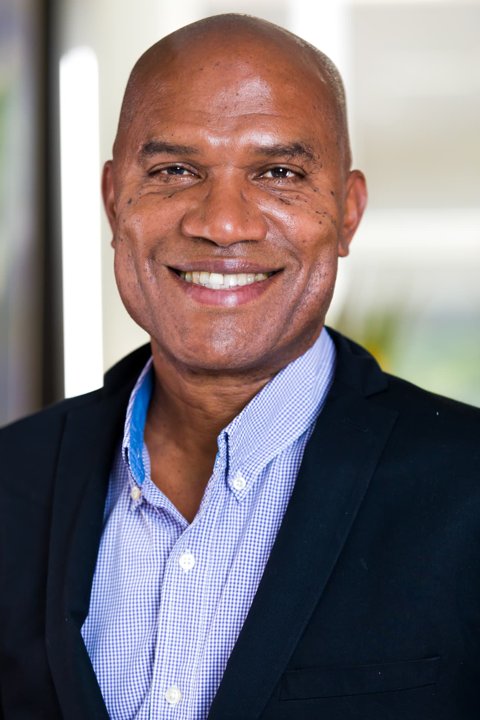
Rohan Hall
Rohan Hall is a technology entrepreneur, AI architect and author with four decades of technology experience, now focused on practical AI across business, education, government and global impact. He founded OceSha Ventures, builds the OceSha AI platform and Lumi, and wrote The Convergence of AI and the Top 10 Emerging Technologies.
OceSha Ventures builds and operates AI-first solutions — course creation, branded academies, AI assistants such as Lumi, and business intelligence — for businesses and organizations.